Guides
How to work through your calls in My calls
The short answer
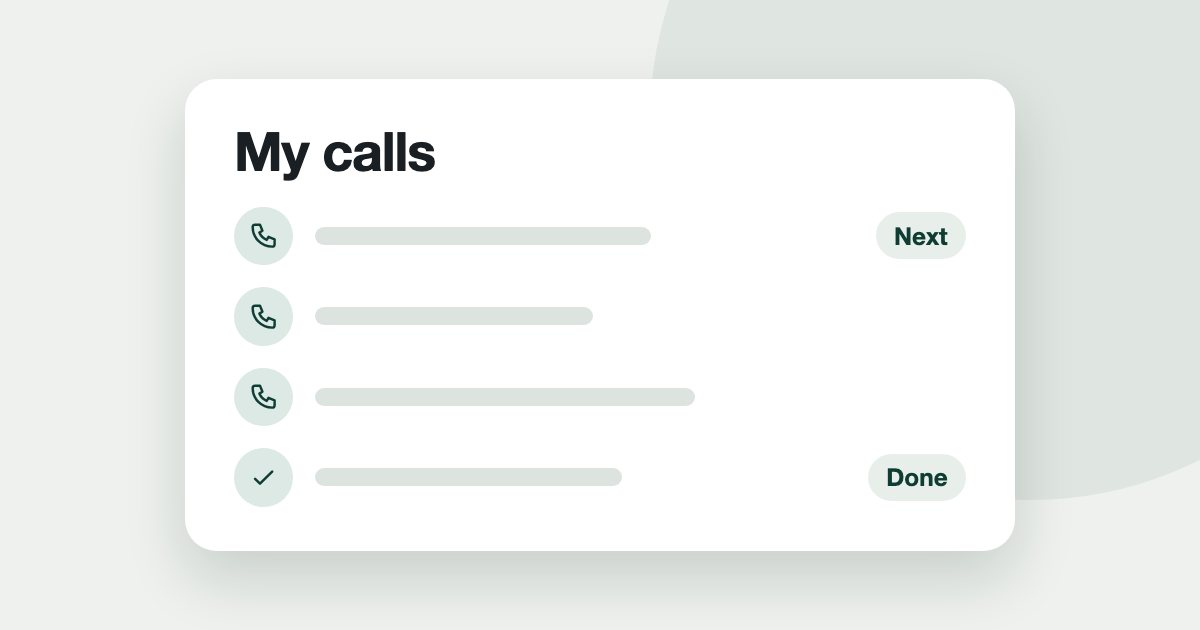
Open Leads, then My calls, and click Start calls. Tend shows one person at a time. Phone them yourself, choose the outcome, and click Save & next. Tend does not dial for you. Do not call, Not interested and Number doesn't work take the person out of the queue.
On this page
My calls is the list of people for you to phone. It keeps the order and the record, and you make the call yourself.
Work the queue
- In the Tend menu, open Leads, then My calls.
- Choose a filter if you want: All, Due, Callbacks, New or Overdue.
- Click Start calls.
- Phone the person from a number registered to your company, then choose what happened: Interested, Follow up, Not interested, No answer, Voicemail, Wrong person, Number doesn't work or Do not call.
- Click Save & next.
Skip · later moves on without recording anything. Do not call and Number doesn't work ask you to confirm with Yes, remove.
See the whole team
Admins, managers and members can switch between Mine and Everyone. Someone with the Agent role always sees their own calls.
Add people to the queue
On the Leads list, select people and use Add to call queue.
Who can be called
Tend only lets you log a call for someone with a recorded basis for contact, such as someone who opted in or sent one of your forms. A plain imported list does not qualify. A lead an agent adds by hand counts as having a basis, so this check is only as honest as your team.
Do not call, Not interested and Number doesn't work take someone out of the queue, because federal rules say not to call back after a refusal on the first call.
What Tend cannot see
The steps again, in short
- Open My calls. In the Tend menu, open Leads, then My calls.
- Start. Choose a filter if you want, and click Start calls.
- Make the call. Phone the person from a number registered to your company.
- Record the outcome. Choose what happened and click Save & next.
- Respect a refusal. If they refuse, choose Not interested or Do not call. Either takes them out of the queue.
See it on your own enquiries
Tend answers, qualifies and routes WhatsApp enquiries from your own listings, with your agents in control.
Related reading
- Guides1 min read
How to capture leads from your website
Send enquiries from your own website into Tend, and record marketing consent when you need it.
- Guides2 min read
How to change your plan and manage billing
See your usage, change plan, update payment details, or cancel.
- Guides2 min read
How to connect your email inbox to Tend
Bring a work mailbox into Tend's inbox, and choose how the AI handles lead emails. Available on request.