Guides
How to capture leads from your website
The short answer
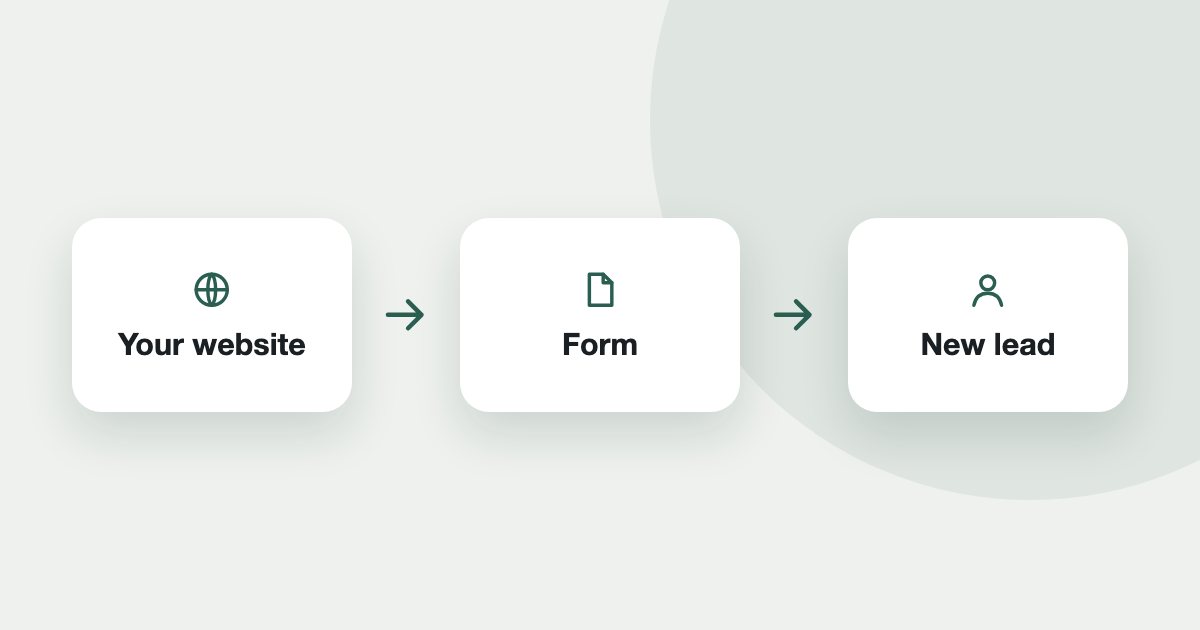
Open Leads, then Forms, and create a form. Tend gives it an address, and your website sends leads there. Tend does not host the form page itself. Only accept leads from limits which site can send, and Require marketing consent records the wording a person agreed to. Admins and managers manage forms.
Forms connect a form on your own website to Tend. Tend does not build or host the page, so your web developer points your existing form at the address Tend gives you.
Create a form
- In the Tend menu, open Leads, then Forms.
- Create a form and give it a Name.
- Set out the Fields your website sends.
- Copy the Form address for your web developer.
Admins and managers can manage forms.
Protect it
Use Only accept leads from to limit which website can send to this form.
Record consent
Turn on Require marketing consent, and enter the Consent wording shown on your form. Tend records this with the lead.
Check it works
- Send a test enquiry through your website.
- It should appear under the form's submissions, with a Team notified badge if your team was told.
Other lead sources
The steps again, in short
- Create the form. In Leads, open Forms and create a form with a name and fields.
- Connect your website. Give the form address to your web developer.
- Limit who can send. Use Only accept leads from.
- Record consent. Turn on Require marketing consent and enter the consent wording.
- Test it. Send an enquiry through your website and check it appears.
See it on your own enquiries
Tend answers, qualifies and routes WhatsApp enquiries from your own listings, with your agents in control.
Related reading
- Guides2 min read
How to change your plan and manage billing
See your usage, change plan, update payment details, or cancel.
- Guides2 min read
How to connect your email inbox to Tend
Bring a work mailbox into Tend's inbox, and choose how the AI handles lead emails. Available on request.
- Guides2 min read
How to import your existing leads
Bring your existing leads into Tend from a spreadsheet, and record where they came from.