Guides
How to connect your email inbox to Tend
The short answer
Email is not on a standard plan; we switch it on for a workspace on request. Once it is on, an admin opens More, Settings, Email and clicks Connect email. Choose how the AI answers lead emails: Auto reply, Draft + approval, Human only or Off.
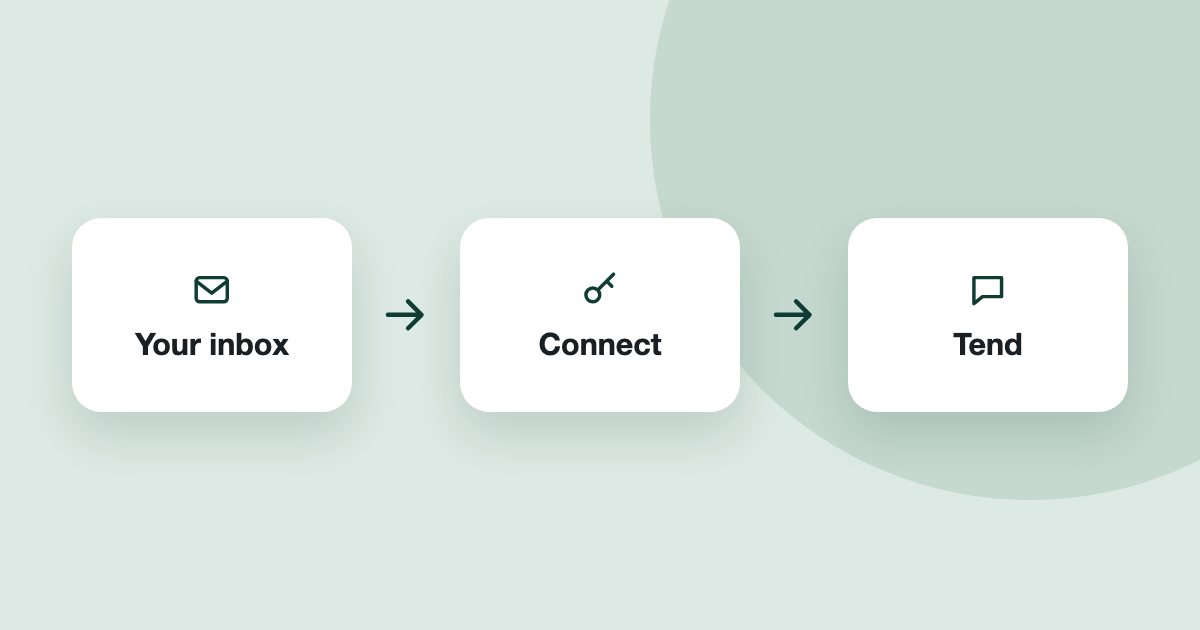
Tend can bring a work mailbox into the same inbox as WhatsApp.
Connect a mailbox
- In the Tend menu, open More, then Settings, then Email.
- Click Connect email. You will be asked to confirm your sign-in. Only admins can do this.
- Enter the mailbox details and test the connection.
- Answer How should the AI answer lead emails?
- Tend imports the last 90 days.
Choose how the AI answers
Auto reply: the AI answers by itself.
Draft + approval: the AI writes, and a person approves.
Human only: the AI does not reply.
Off: email is off for that mailbox.
In the email settings, Require approval for every AI email holds every AI email for approval, and Pause email stops everything.
Sort out what is not a lead
Vendor pitches and similar emails go to the Screener, which only admins see. They do not create leads or drafts. Use Not a lead on a thread to teach Tend.
Good to know
The steps again, in short
- Ask for email to be switched on. Email is switched on per workspace on request.
- Open Email. In the Tend menu, open More, then Settings, then Email, and click Connect email.
- Test the connection. Enter the mailbox details and test them.
- Choose how the AI answers. Pick Auto reply, Draft + approval, Human only or Off.
- Review the Screener. Admins check the Screener for messages that are not leads.
See it on your own enquiries
Tend answers, qualifies and routes WhatsApp enquiries from your own listings, with your agents in control.
Related reading
- Guides1 min read
How to capture leads from your website
Send enquiries from your own website into Tend, and record marketing consent when you need it.
- Guides2 min read
How to change your plan and manage billing
See your usage, change plan, update payment details, or cancel.
- Guides2 min read
How to import your existing leads
Bring your existing leads into Tend from a spreadsheet, and record where they came from.