Guides
How to import your existing leads
The short answer
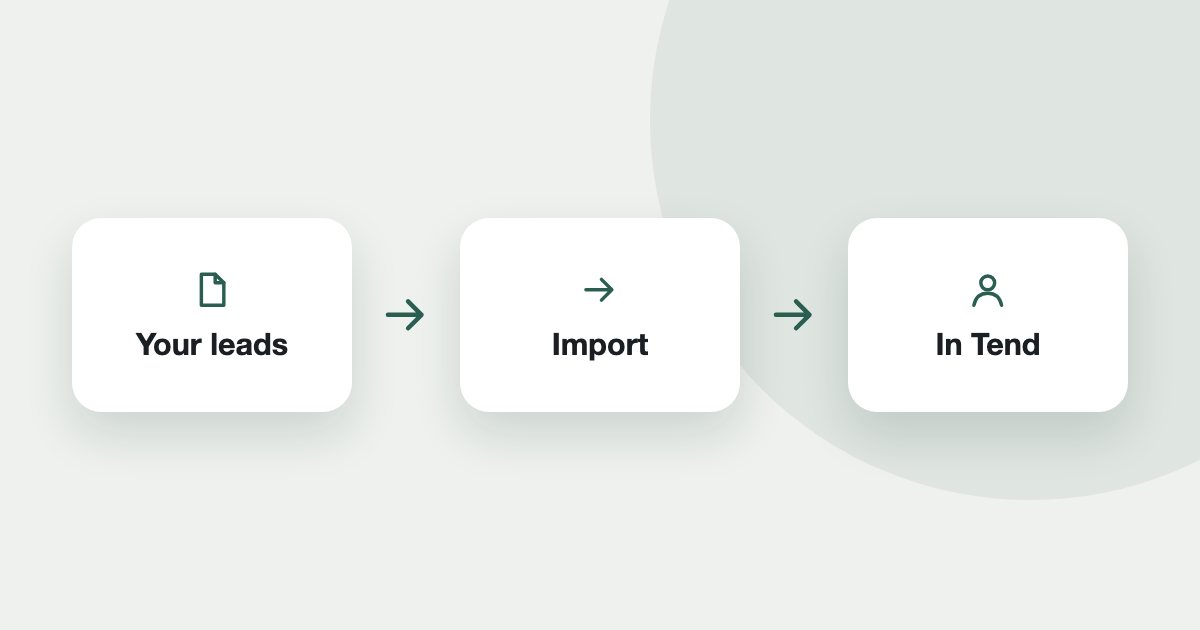
Open Leads, click More, then Import leads, and upload a CSV or XLSX file. Match the columns, then say where the leads came from. Imported leads are marked as not opted in, so they cannot be called from My calls or sent marketing until they opt in. Only admins can import.
You can bring your existing leads in from a spreadsheet. Importing them does not make them lawful to market to, so read the last section.
Import
- In the Tend menu, open Leads, click More, then Import leads.
- Upload a CSV or XLSX file.
- Map columns: tell Tend which column is which.
- Review: fill in Where did these leads come from? This is recorded against every lead as the basis for contacting them, so be specific and truthful.
- Finish on Done.
What happens to them
Imported leads arrive marked as not opted in. An agent can see and work them, but they do not qualify for the My calls queue, and Tend blocks WhatsApp messages you start and automatic follow-ups until they message you or opt in.
Before you upload a list
The steps again, in short
- Open the import. In the Tend menu, open Leads, click More, then Import leads.
- Upload your file. Choose a CSV or XLSX file.
- Map the columns. Tell Tend which column is which.
- Say where they came from. Fill in the source truthfully. It is recorded against every lead.
- Check what you may do. Imported leads are marked as not opted in. Do not market to them until they opt in.
See it on your own enquiries
Tend answers, qualifies and routes WhatsApp enquiries from your own listings, with your agents in control.
Related reading
- Guides1 min read
How to capture leads from your website
Send enquiries from your own website into Tend, and record marketing consent when you need it.
- Guides2 min read
How to change your plan and manage billing
See your usage, change plan, update payment details, or cancel.
- Guides2 min read
How to connect your email inbox to Tend
Bring a work mailbox into Tend's inbox, and choose how the AI handles lead emails. Available on request.